Onboarding — Set your goal
At this step, you’ll set your main goal so we can navigate you to the right onboarding path and configure your AI agents for immediate results.
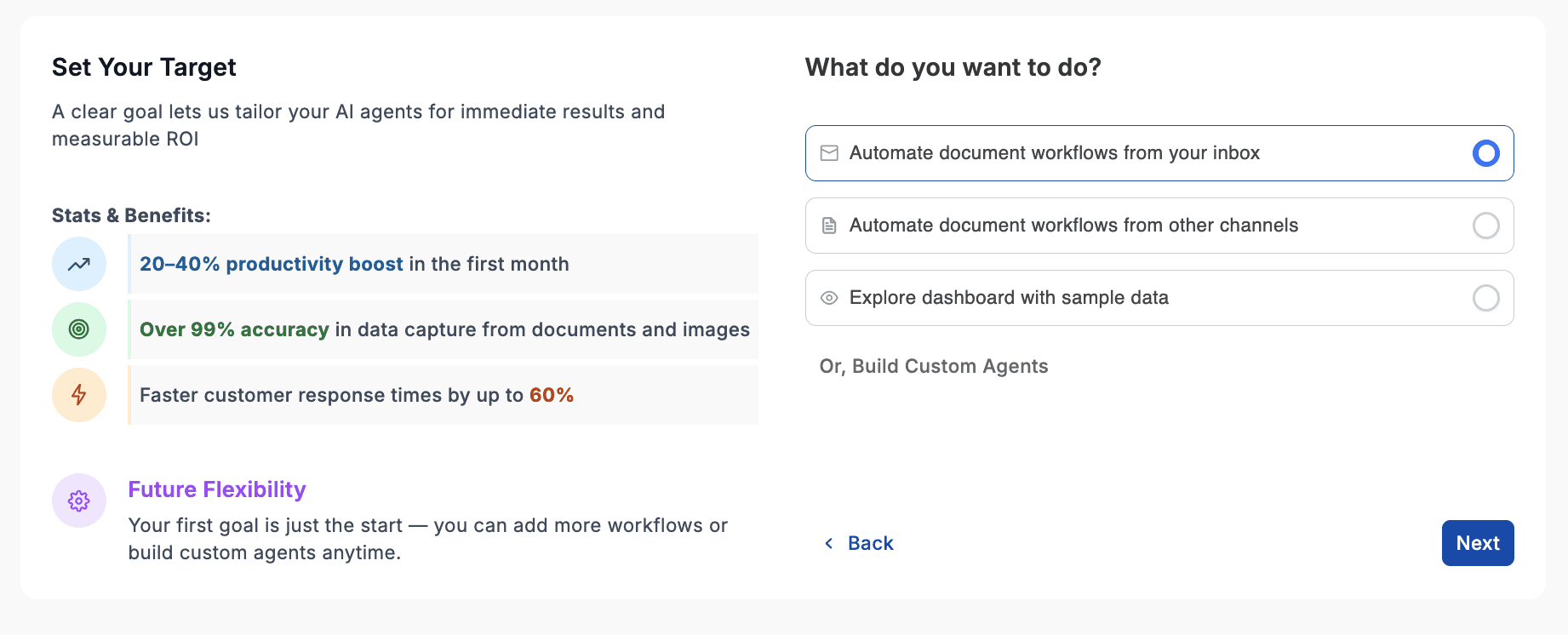
📋 Main Question: What do you want to do?
1. Automate document workflows from your inbox
Connect your company inbox to UpBrains AI and automatically process incoming attachments using UpBrains AI Agents.
📍 Best for: sales, support, and operations teams that rely on email-based workflows.
2. Automate document workflows from other channels
Integrate data and files from other sources such as APIs, Drives or messaging platforms.
📍 Best for: organizations handling multi-channel or cross-platform automation.
3. Explore the dashboard with sample data
Launch a simulated environment with demo data to see how UpBrains AI works before connecting your own systems.
📍 Best for: new users who want to explore features before setup.
4. Build a Custom Agent
Design and configure your own AI agent tailored to your unique processes and business logic based on pre-built templates.
📍 Best for: technical teams, product managers, and companies with specialized workflows.
Starting from a template
If you choose "Automate document workflows from other channels" or "Build Custom Agents" you will be guided to a template selection page, where you can start from a predefined template or you have the option to start from an empty agent builder editor to design your own agent:
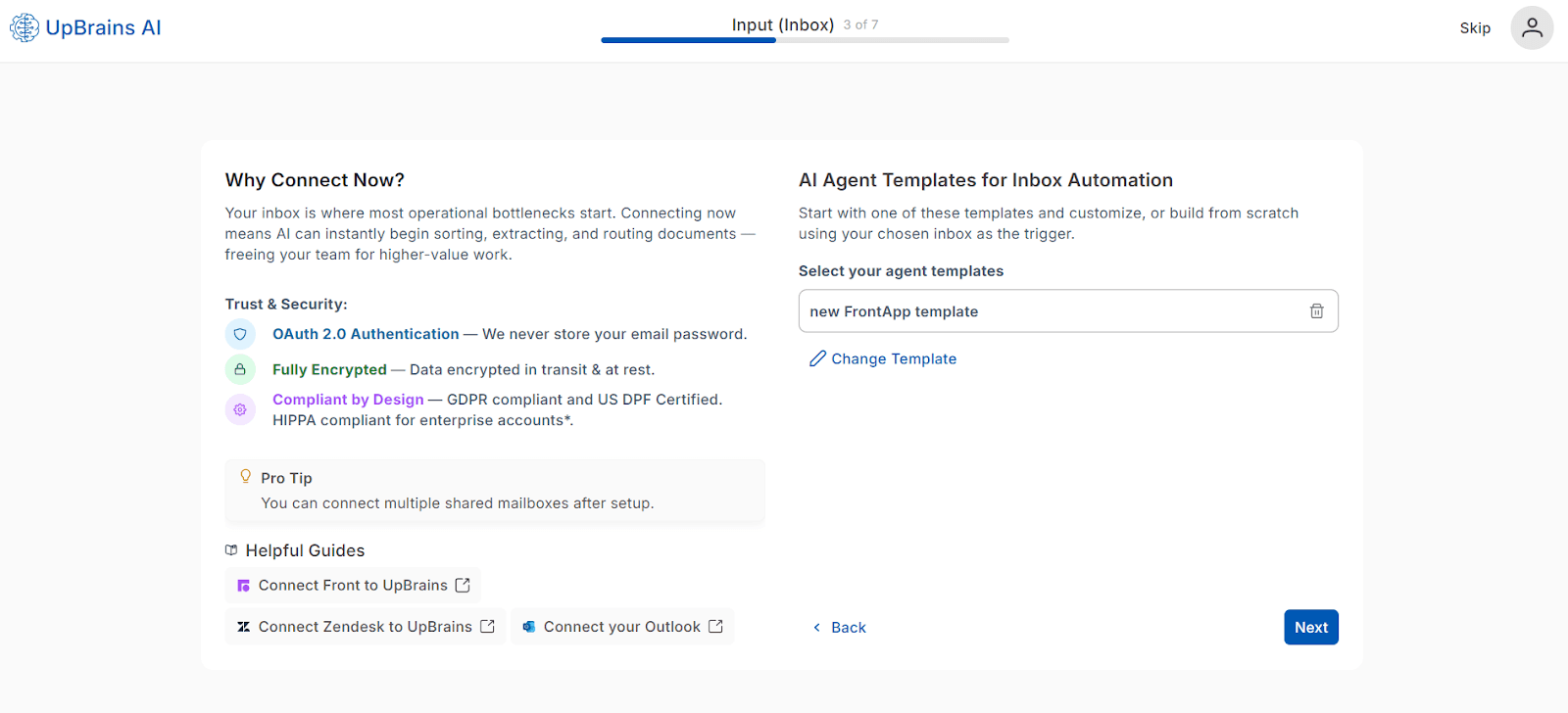
When you click on "Change Template" a modal will open that will show the list of prebuilt templates as well as the option to start from scratch.
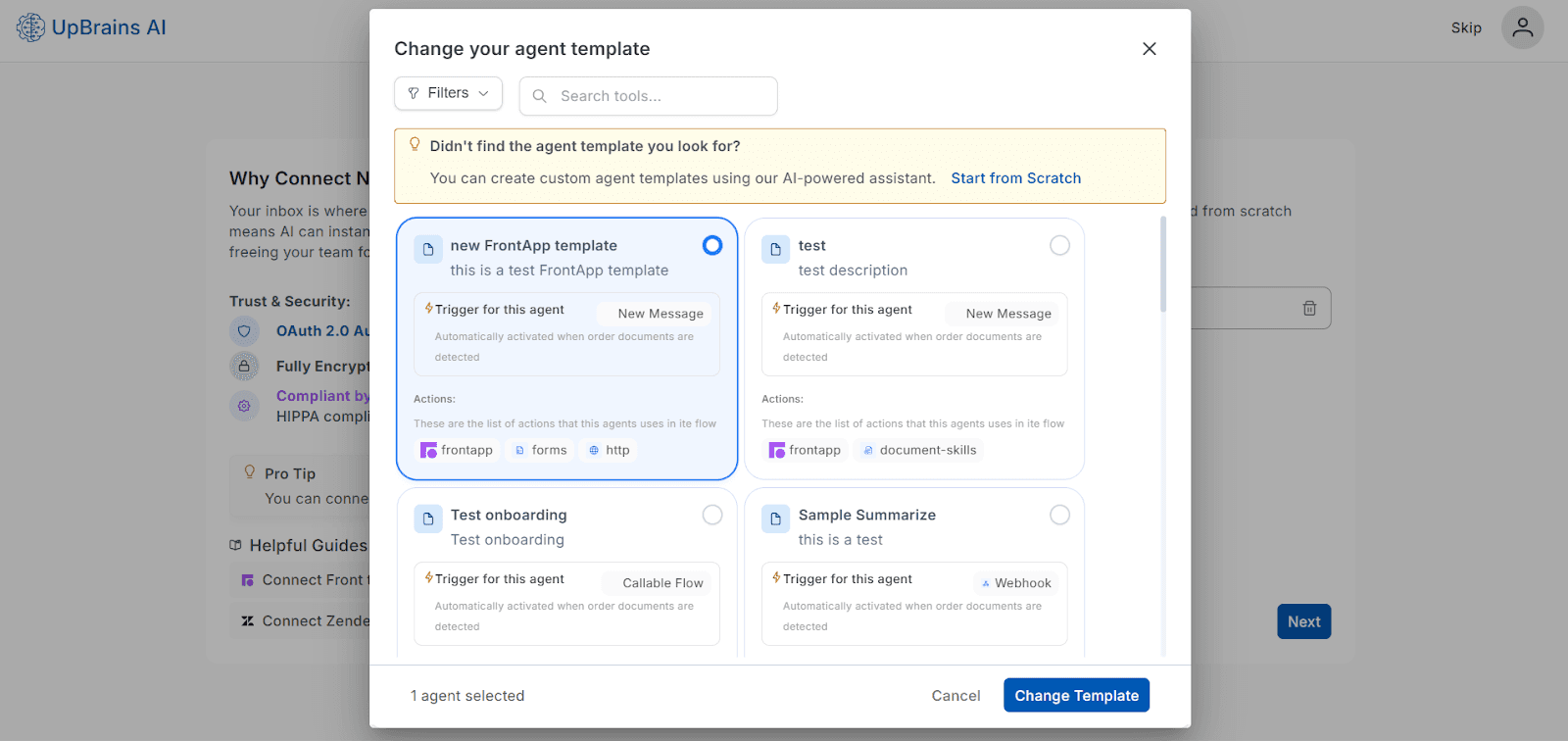
After selecting a template, you will be back to the template selection page where if you click on Next you will be guided to Agent Builder with a preconfigured agent template that you can customize and publish.
Onboarding — Set your goal
At this step, you’ll set your main goal so we can navigate you to the right onboarding path and configure your AI agents for immediate results.
📋 Main Question: What do you want to do?
1. Automate document workflows from your inbox
Connect your company inbox to UpBrains AI and automatically process incoming attachments using UpBrains AI Agents.
📍 Best for: sales, support, and operations teams that rely on email-based workflows.
2. Automate document workflows from other channels
Integrate data and files from other sources such as APIs, Drives or messaging platforms.
📍 Best for: organizations handling multi-channel or cross-platform automation.
3. Explore the dashboard with sample data
Launch a simulated environment with demo data to see how UpBrains AI works before connecting your own systems.
📍 Best for: new users who want to explore features before setup.
4. Build a Custom Agent
Design and configure your own AI agent tailored to your unique processes and business logic based on pre-built templates.
📍 Best for: technical teams, product managers, and companies with specialized workflows.
Starting from a template
If you choose "Automate document workflows from other channels" or "Build Custom Agents" you will be guided to a template selection page, where you can start from a predefined template or you have the option to start from an empty agent builder editor to design your own agent:
When you click on "Change Template" a modal will open that will show the list of prebuilt templates as well as the option to start from scratch.
After selecting a template, you will be back to the template selection page where if you click on Next you will be guided to Agent Builder with a preconfigured agent template that you can customize and publish.
Connect your Inbox