Onboarding — Document Types, Classification and Extraction
This step defines how your AI processes attachments and turns them into structured, searchable data.
Depending on your selection, UpBrains AI can perform structured field extraction, OCR text capture, or allow you to build a custom extractor for more advanced needs.
Your AI Can Choose:
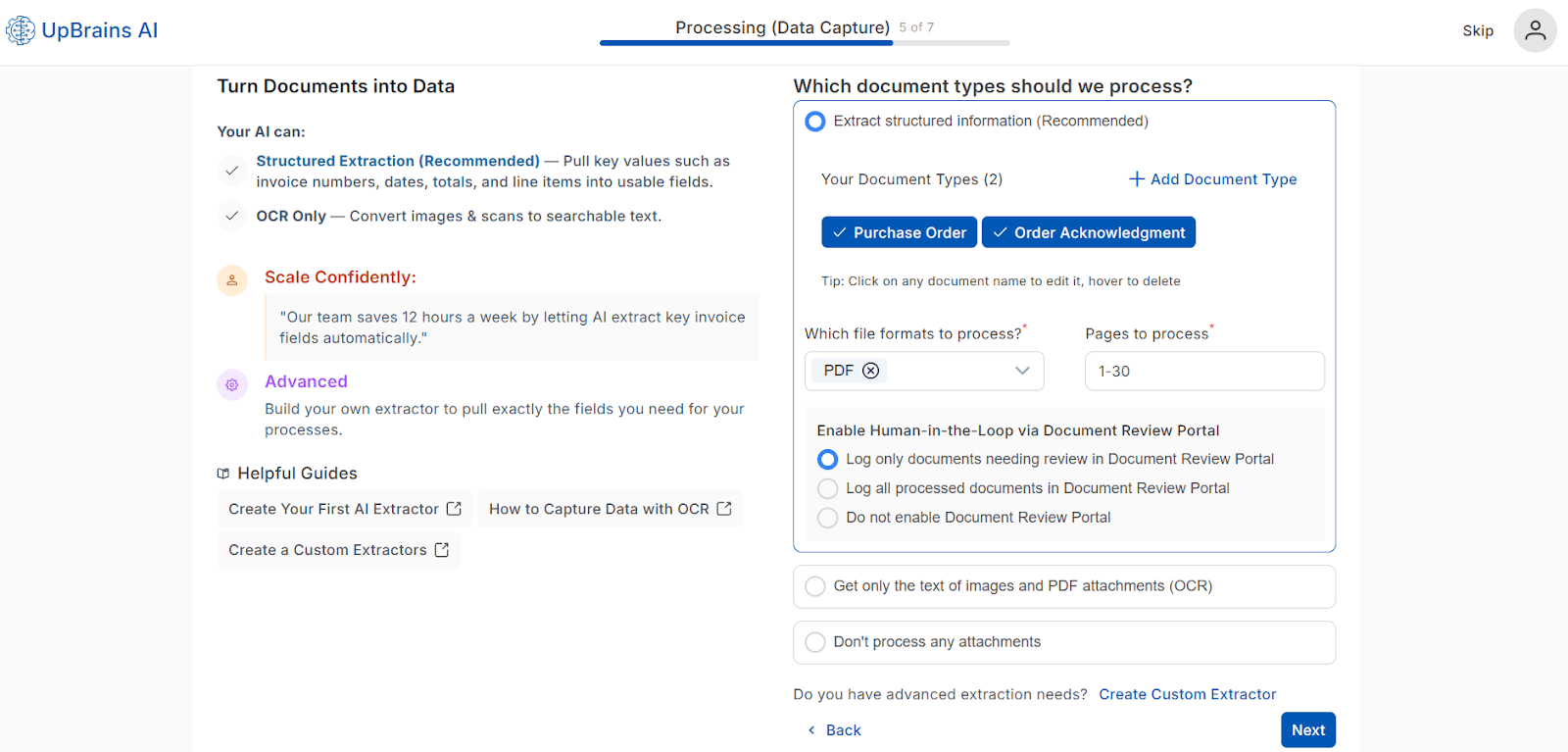
🧠 Option 1 — Structured Extraction (Recommended)
Extract key fields from each document, such as:
Invoice number
Date
Total amount
Line items
Vendor name
These fields are converted into structured data that can be sent to your systems (ERP, CRM, or analytics dashboards).
Configuration Options:
Button:
Add Document Type→ Opens a modal to define new document types that you would like to be recognized and processed (e.g., Invoice, Purchase Order, Packing Slip).💡 Tip: Click on any document name to edit it, or hover to delete.
Option - File Formats to Process: PDF is selected by default; multiple formats supported including Images (JPG/JPEG, TIFF, PNG), Excel and Word.
Option: Pages to Process: Define pages to process (e.g., 1, 1-2 or 1–30). Default is 1-50.
Human-in-the-Loop Review Portal: There is a Document Review portal, where AI can post only the document extraction results that needs review or all documents processed. The options are:
Log only documents needing reviewLog all processed documentsDo not enable Document Review Portal
The use of Document Review portal is recommended for to enable Human-in-the-Loop AI and therefore increase the data accuracy, traceability, and audit visibility.
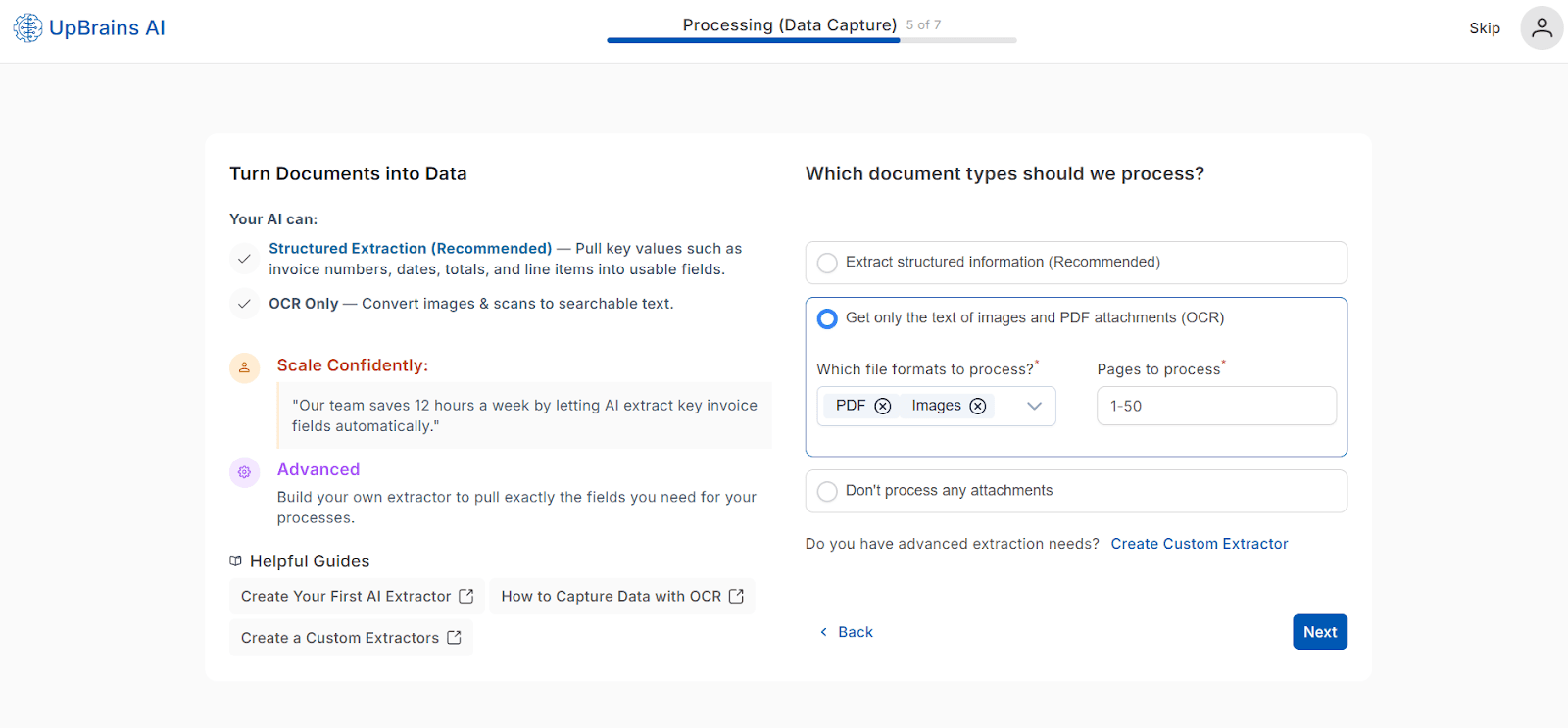
🔍 Option 2 — OCR Only
Get only the text from images and PDF attachments — no field-level extraction. This is best suited for teams who want searchable content without data mapping or will post the extracted text as comments inside tools such as Front or Zendesk.
Configuration Options:
File Formats to Process: PDF, Images
Pages to Process: 1–50
Output is structured, layout-preserving text, which resembles the actual layout of text in the original document, and is accessible for manual review or keyword-based workflows.
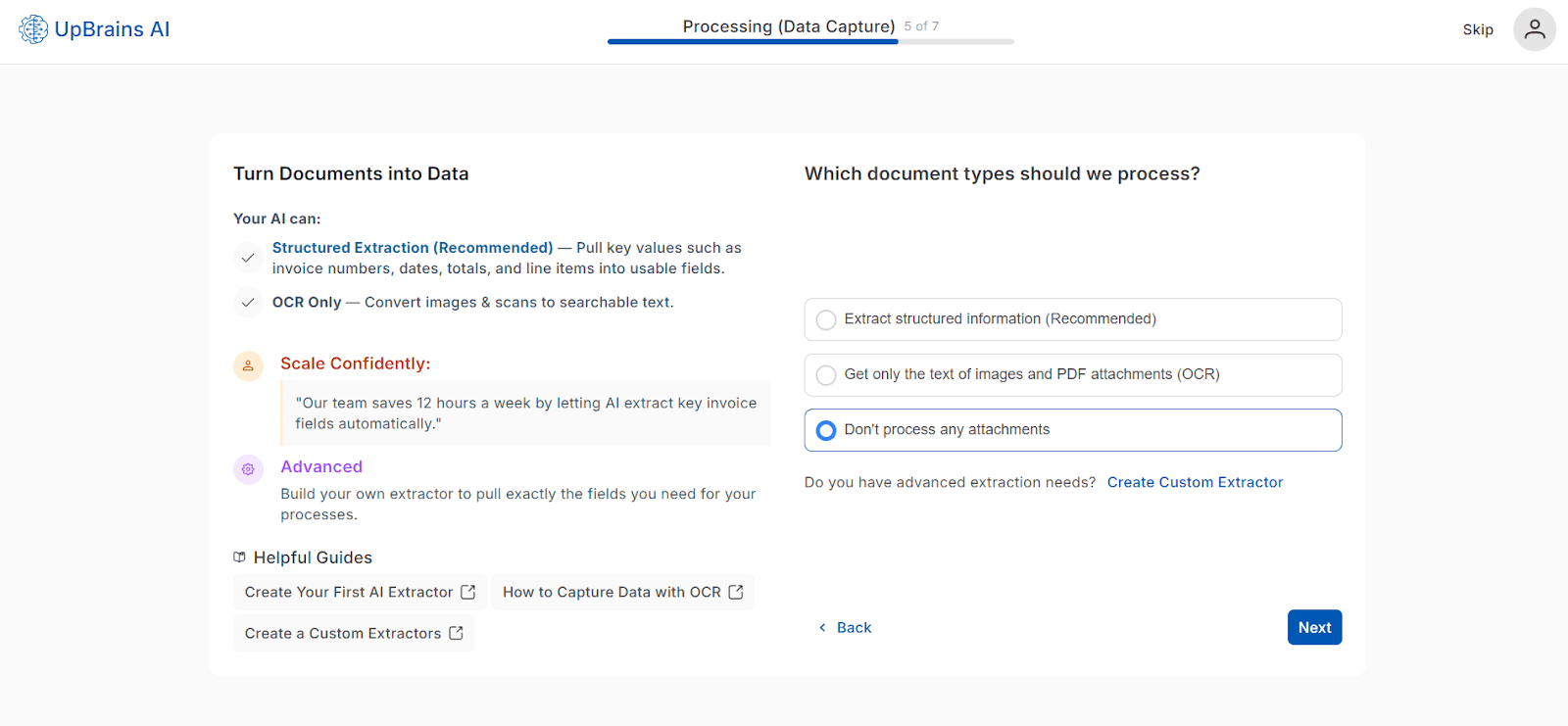
⚙️ Option 3 — Don’t Process Attachments
Skip extraction entirely. Attachments will remain stored in your connected inbox without processing or AI interaction. Useful for testing or partial automation environments
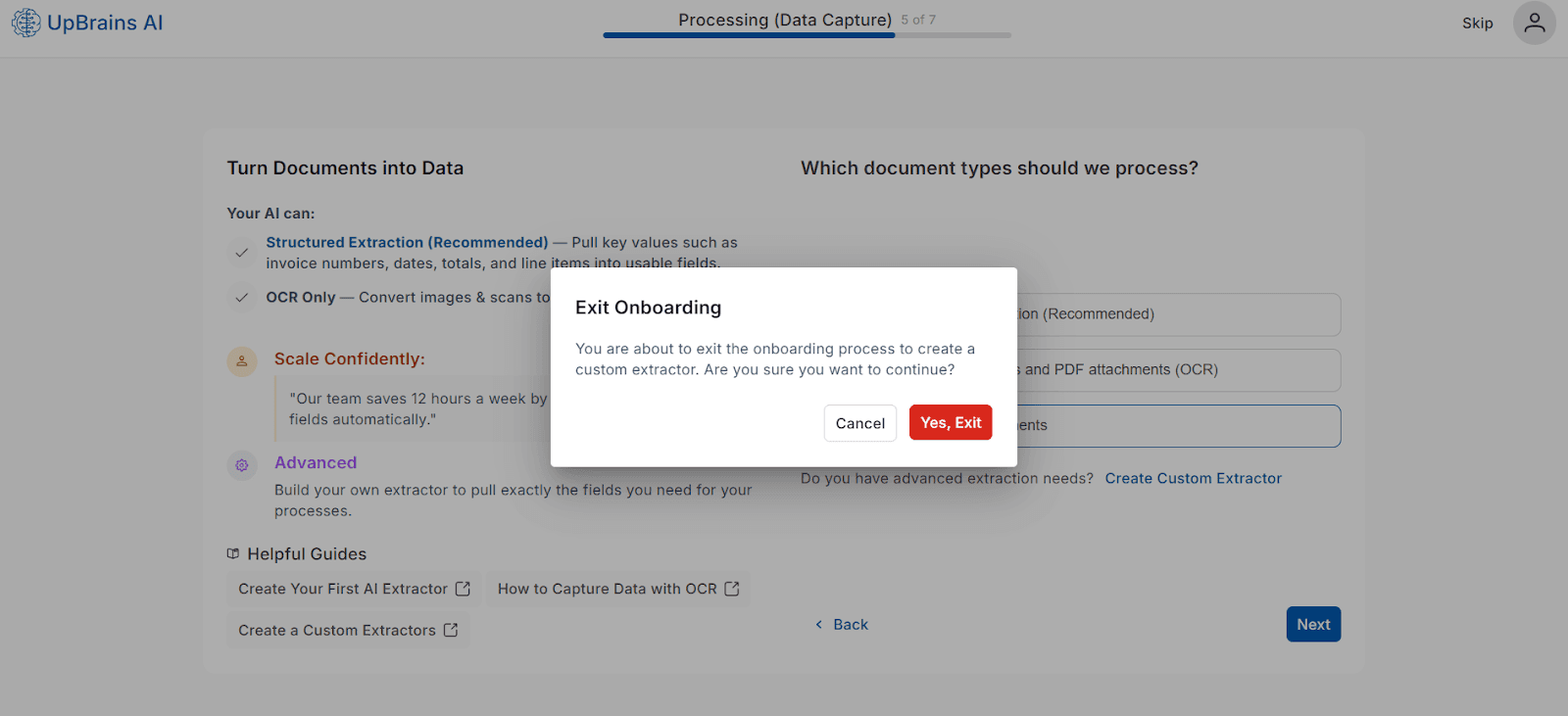
🧩 Option 4 — Build Custom Extractor
If you have advanced or unique extraction needs, you can create a custom extractor.
When selected, a confirmation message appears:
Exit Onboarding
You are about to exit the onboarding process to create a custom extractor. Are you sure you want to continue?
Choosing Yes will redirect you to the Custom Extractor Builder page, where you can define:
Field names and data types
Parsing rules (regex, AI pattern detection)
Output format and destination
Pro Tip
Start with Structured Extraction (Recommended) for faster results. You can always return later to build custom extractors or refine your OCR workflows.
Helpful Guides
Onboarding — Document Types, Classification and Extraction
This step defines how your AI processes attachments and turns them into structured, searchable data.
Depending on your selection, UpBrains AI can perform structured field extraction, OCR text capture, or allow you to build a custom extractor for more advanced needs.
Your AI Can Choose:
🧠 Option 1 — Structured Extraction (Recommended)
Extract key fields from each document, such as:
Invoice number
Date
Total amount
Line items
Vendor name
These fields are converted into structured data that can be sent to your systems (ERP, CRM, or analytics dashboards).
Configuration Options:
Button:
Add Document Type→ Opens a modal to define new document types that you would like to be recognized and processed (e.g., Invoice, Purchase Order, Packing Slip).💡 Tip: Click on any document name to edit it, or hover to delete.
Option - File Formats to Process: PDF is selected by default; multiple formats supported including Images (JPG/JPEG, TIFF, PNG), Excel and Word.
Option: Pages to Process: Define pages to process (e.g., 1, 1-2 or 1–30). Default is 1-50.
Human-in-the-Loop Review Portal: There is a Document Review portal, where AI can post only the document extraction results that needs review or all documents processed. The options are:
Log only documents needing reviewLog all processed documentsDo not enable Document Review Portal
The use of Document Review portal is recommended for to enable Human-in-the-Loop AI and therefore increase the data accuracy, traceability, and audit visibility.
🔍 Option 2 — OCR Only
Get only the text from images and PDF attachments — no field-level extraction. This is best suited for teams who want searchable content without data mapping or will post the extracted text as comments inside tools such as Front or Zendesk.
Configuration Options:
File Formats to Process: PDF, Images
Pages to Process: 1–50
Output is structured, layout-preserving text, which resembles the actual layout of text in the original document, and is accessible for manual review or keyword-based workflows.
⚙️ Option 3 — Don’t Process Attachments
Skip extraction entirely. Attachments will remain stored in your connected inbox without processing or AI interaction. Useful for testing or partial automation environments
🧩 Option 4 — Build Custom Extractor
If you have advanced or unique extraction needs, you can create a custom extractor.
When selected, a confirmation message appears:
Exit Onboarding
You are about to exit the onboarding process to create a custom extractor. Are you sure you want to continue?
Choosing Yes will redirect you to the Custom Extractor Builder page, where you can define:
Field names and data types
Parsing rules (regex, AI pattern detection)
Output format and destination
Pro Tip
Start with Structured Extraction (Recommended) for faster results. You can always return later to build custom extractors or refine your OCR workflows.
Helpful Guides
Extraction Results Destination