Onboarding — Extraction Results Destination
Decide where your extracted and processed data should go. UpBrains AI allows you to send AI-generated results to spreadsheets, ticketing tools, APIs or enterprise systems — so your insights turn directly into action.
Connection Options: Into Google Sheets / Excel 365
Send extracted results directly to separate connected spreadsheets for analysis or reporting. If you choose Google Sheet or Microsoft Excel 365, this option will create a separate Google Sheet for each document type you have selected.
Configuration
Authenticate your account using OAuth (secure login; credentials are never stored).
Results automatically flow into each sheet
Each document type (e.g., invoice) has its own dedicated sheet.
No need to select just one document type/class — all document classes are configured at the same time.
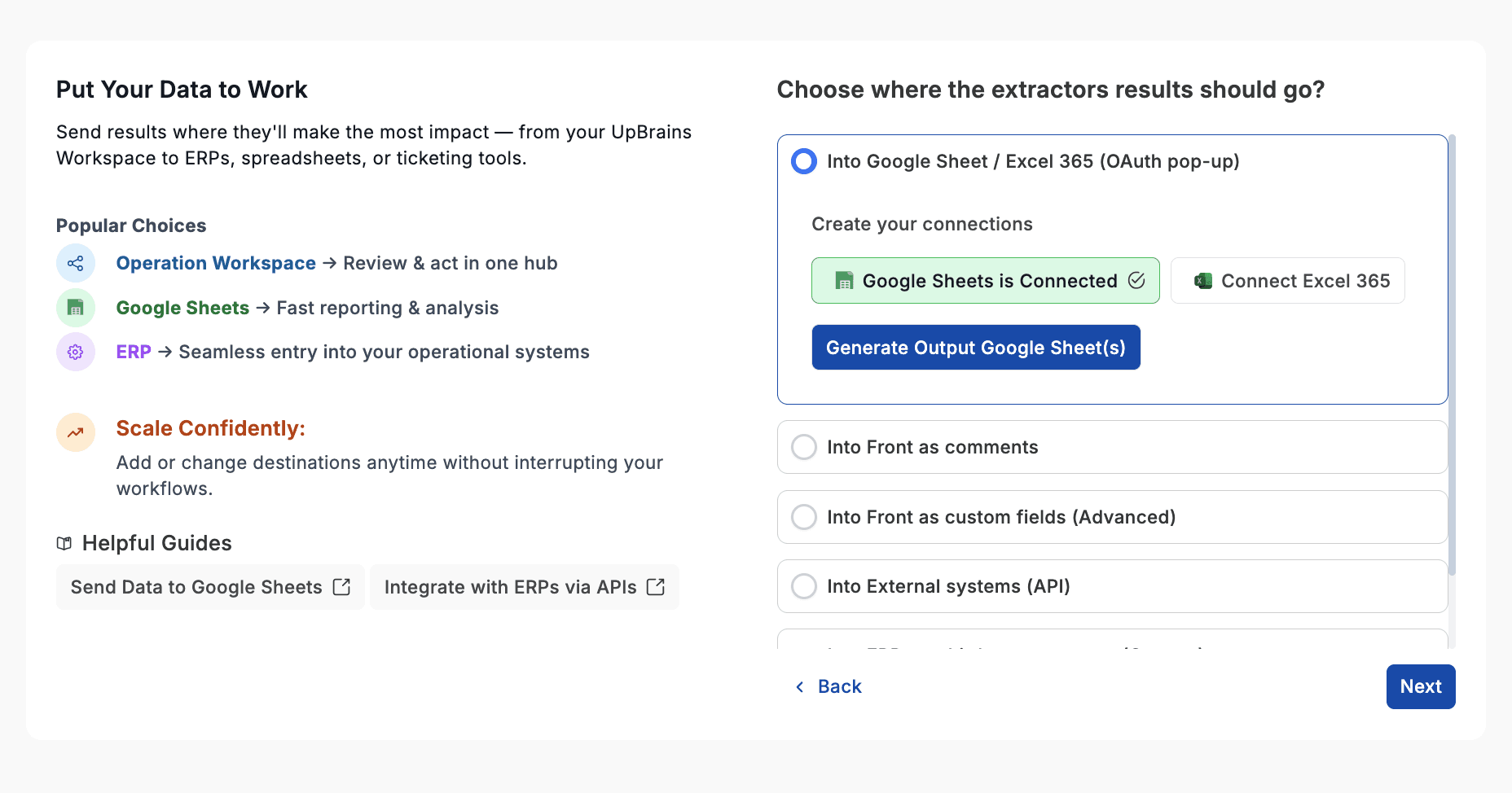
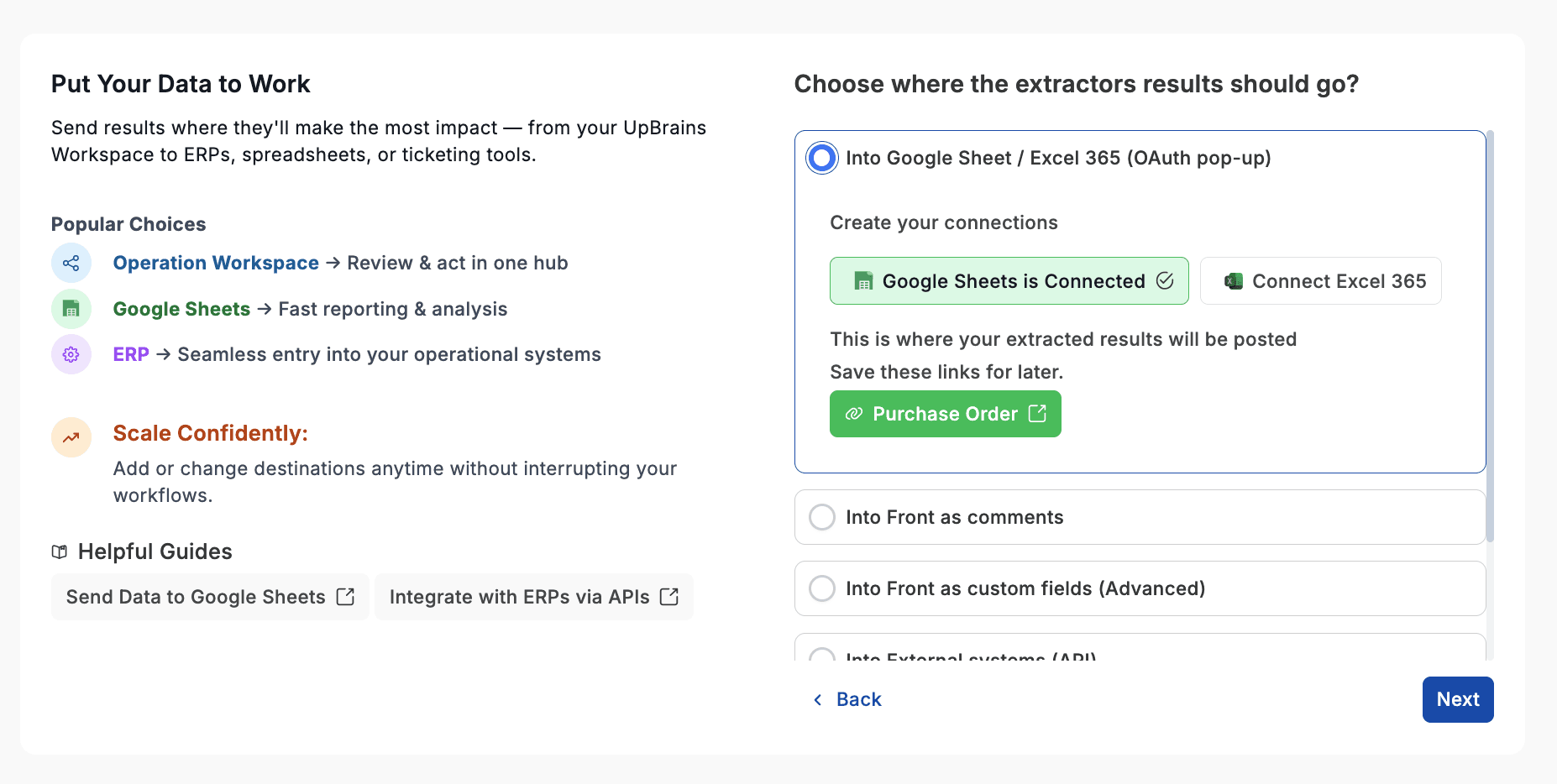
Pro Tip: Make sure to hit Generate Output Sheets before Confirm to create all sheets. Once generated, hitting Confirm will start sending the extracted results to the respective sheets automatically. After generation, the page looks like the following (depending on the number of document types selected). This file will be empty at this point.
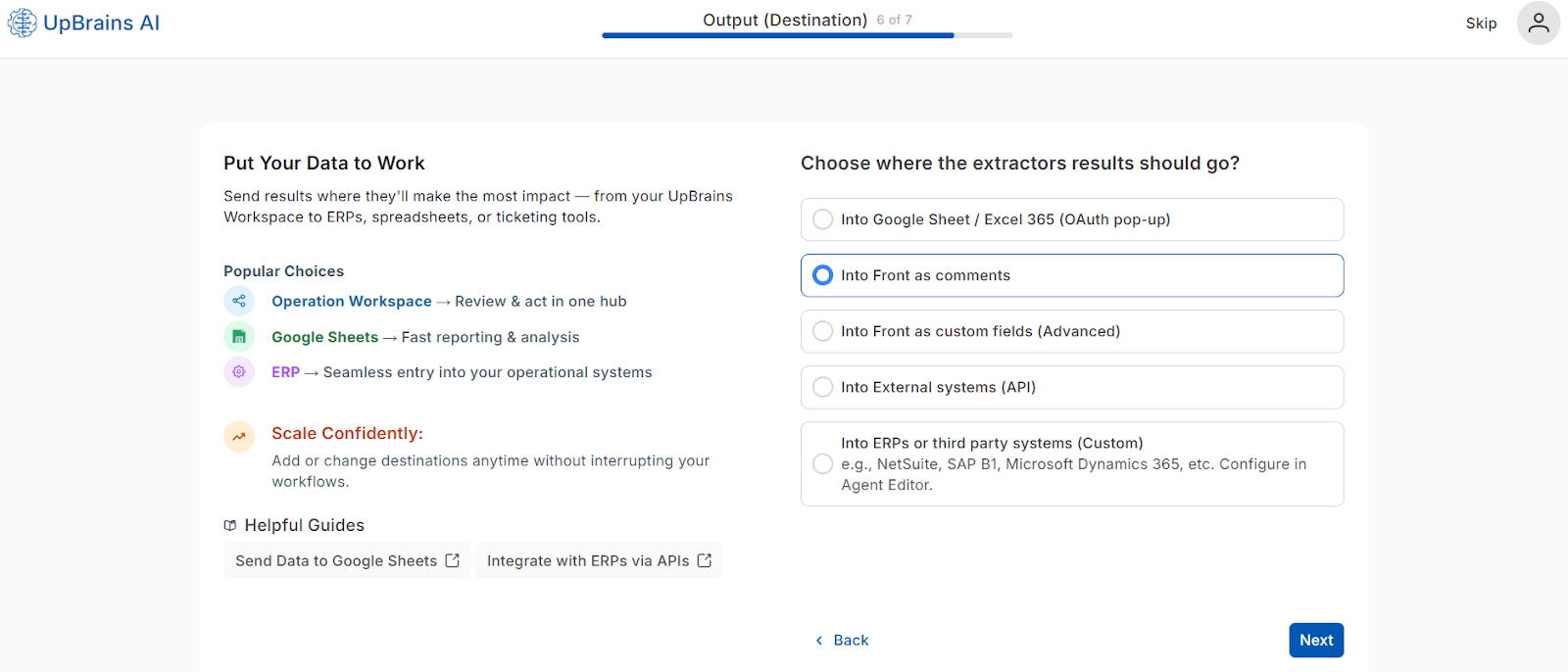
Option 2 — Into Front or Zendesk as Comments
Post the extraction results as comments inside your Front inbox or Zendesk ticking system (depending on which one you have connected). Ideal for teams who collaborate within email threads or ticket discussions to have the results be posted as comments.
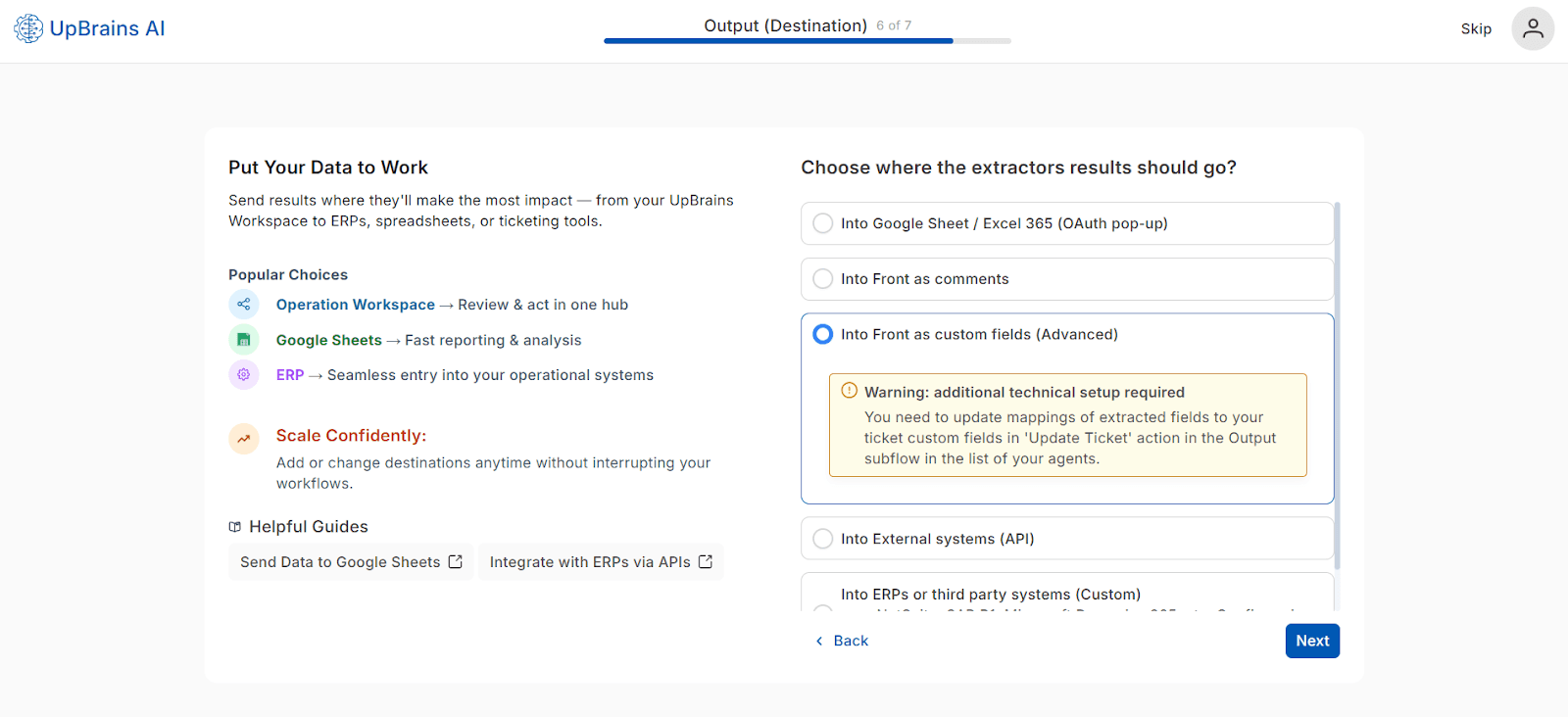
Option 3 — Into Front or Zendesk as Custom Fields (Advanced)
Map extracted data into custom ticket fields inside Front or Zendesk.
⚠️ Warning: Additional technical setup required:
You need to update field mappings in the “Update Ticket” action located under the Output subflow within your agent list.
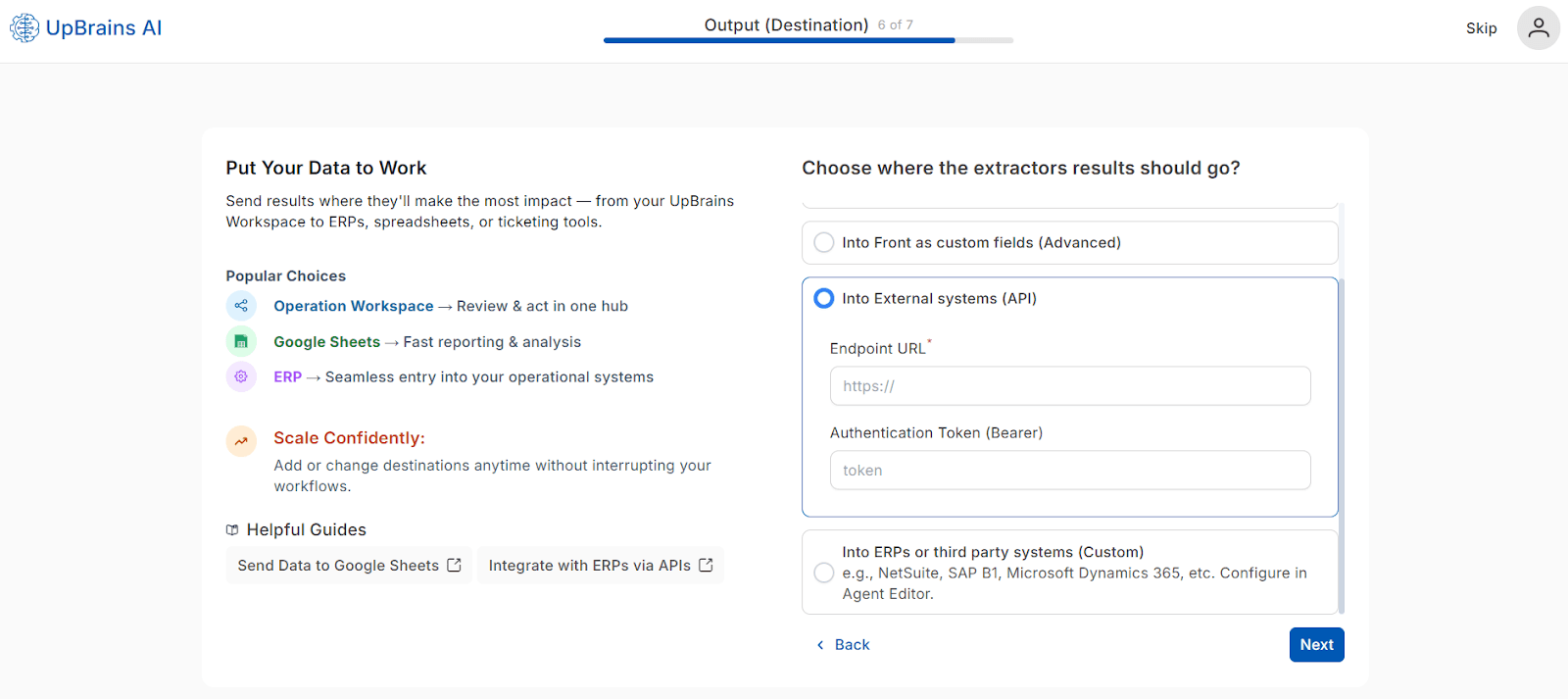
Option 4 — Into External Systems (API)
Send extracted data directly to an external system using an API endpoint.
Configuration Fields:
Endpoint URL:
https://…Authentication Token (Bearer): (enter your API key)
Use this when you need to push data to an endpoint that may store the results into an internal database, custom backend, or third-party service.
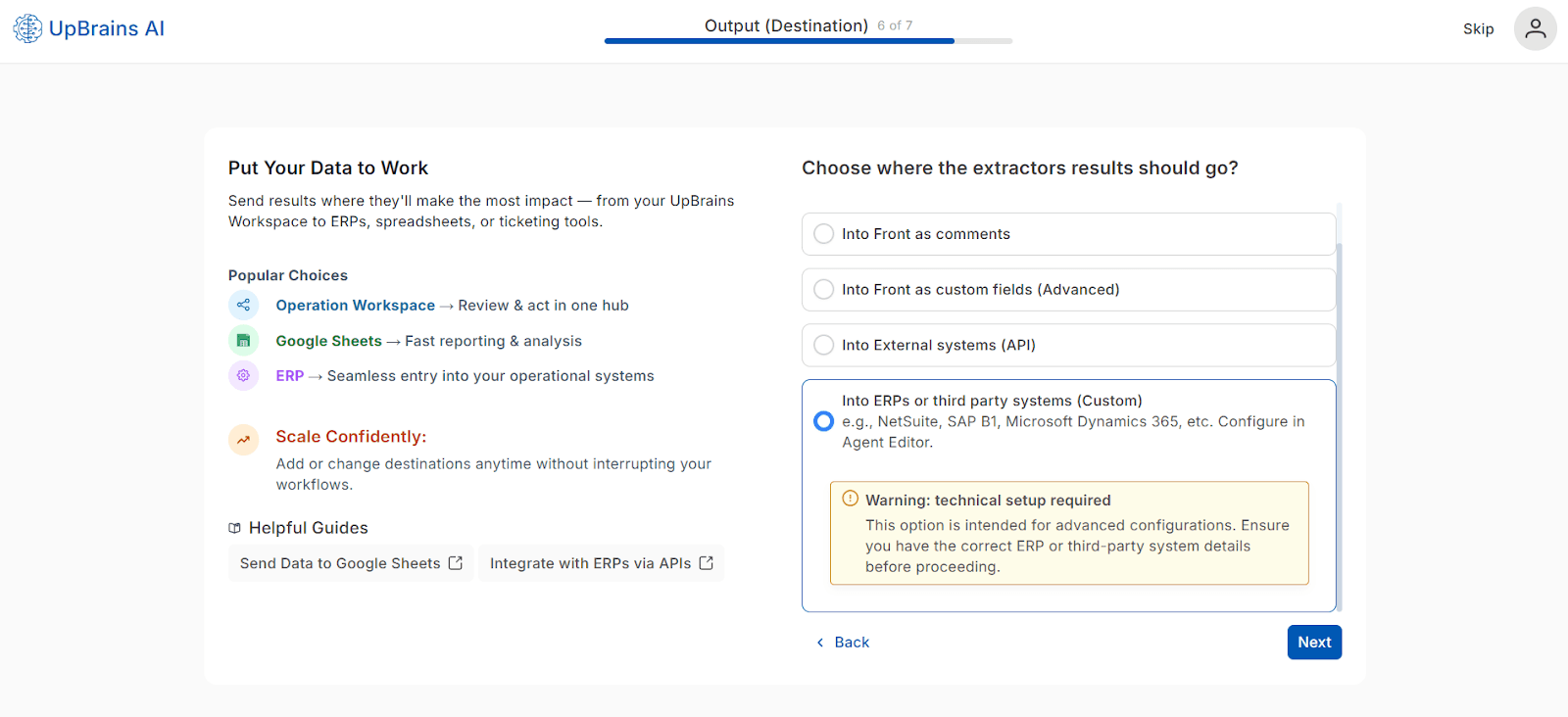
Option 5 — Into ERPs or Third-Party Systems (Custom)
Send extracted results directly into systems such as:
NetSuite
SAP B1
Microsoft Dynamics 365
or other ERP / CRM platforms.
⚠️ Warning: Technical setup required. Please contact us for more information and onboarding assistance. Ensure you have the correct ERP or third-party connection details before proceeding. All integration details are configured in the Agent Editor.
Pro Tip
Start with Google Sheets for instant visibility and quick validation of your extracted data. Once your setup is verified, expand to API or ERP integrations for full automation.
Helpful Guides
Onboarding — Extraction Results Destination
Decide where your extracted and processed data should go. UpBrains AI allows you to send AI-generated results to spreadsheets, ticketing tools, APIs or enterprise systems — so your insights turn directly into action.
Connection Options: Into Google Sheets / Excel 365
Send extracted results directly to separate connected spreadsheets for analysis or reporting. If you choose Google Sheet or Microsoft Excel 365, this option will create a separate Google Sheet for each document type you have selected.
Configuration
Authenticate your account using OAuth (secure login; credentials are never stored).
Results automatically flow into each sheet
Each document type (e.g., invoice) has its own dedicated sheet.
No need to select just one document type/class — all document classes are configured at the same time.
Pro Tip: Make sure to hit Generate Output Sheets before Confirm to create all sheets. Once generated, hitting Confirm will start sending the extracted results to the respective sheets automatically. After generation, the page looks like the following (depending on the number of document types selected). This file will be empty at this point.
Option 2 — Into Front or Zendesk as Comments
Post the extraction results as comments inside your Front inbox or Zendesk ticking system (depending on which one you have connected). Ideal for teams who collaborate within email threads or ticket discussions to have the results be posted as comments.
Option 3 — Into Front or Zendesk as Custom Fields (Advanced)
Map extracted data into custom ticket fields inside Front or Zendesk.
⚠️ Warning: Additional technical setup required:
You need to update field mappings in the “Update Ticket” action located under the Output subflow within your agent list.
Option 4 — Into External Systems (API)
Send extracted data directly to an external system using an API endpoint.
Configuration Fields:
Endpoint URL:
https://…Authentication Token (Bearer): (enter your API key)
Use this when you need to push data to an endpoint that may store the results into an internal database, custom backend, or third-party service.
Option 5 — Into ERPs or Third-Party Systems (Custom)
Send extracted results directly into systems such as:
NetSuite
SAP B1
Microsoft Dynamics 365
or other ERP / CRM platforms.
⚠️ Warning: Technical setup required. Please contact us for more information and onboarding assistance. Ensure you have the correct ERP or third-party connection details before proceeding. All integration details are configured in the Agent Editor.
Pro Tip
Start with Google Sheets for instant visibility and quick validation of your extracted data. Once your setup is verified, expand to API or ERP integrations for full automation.
Helpful Guides
Final - Dashboard Access